
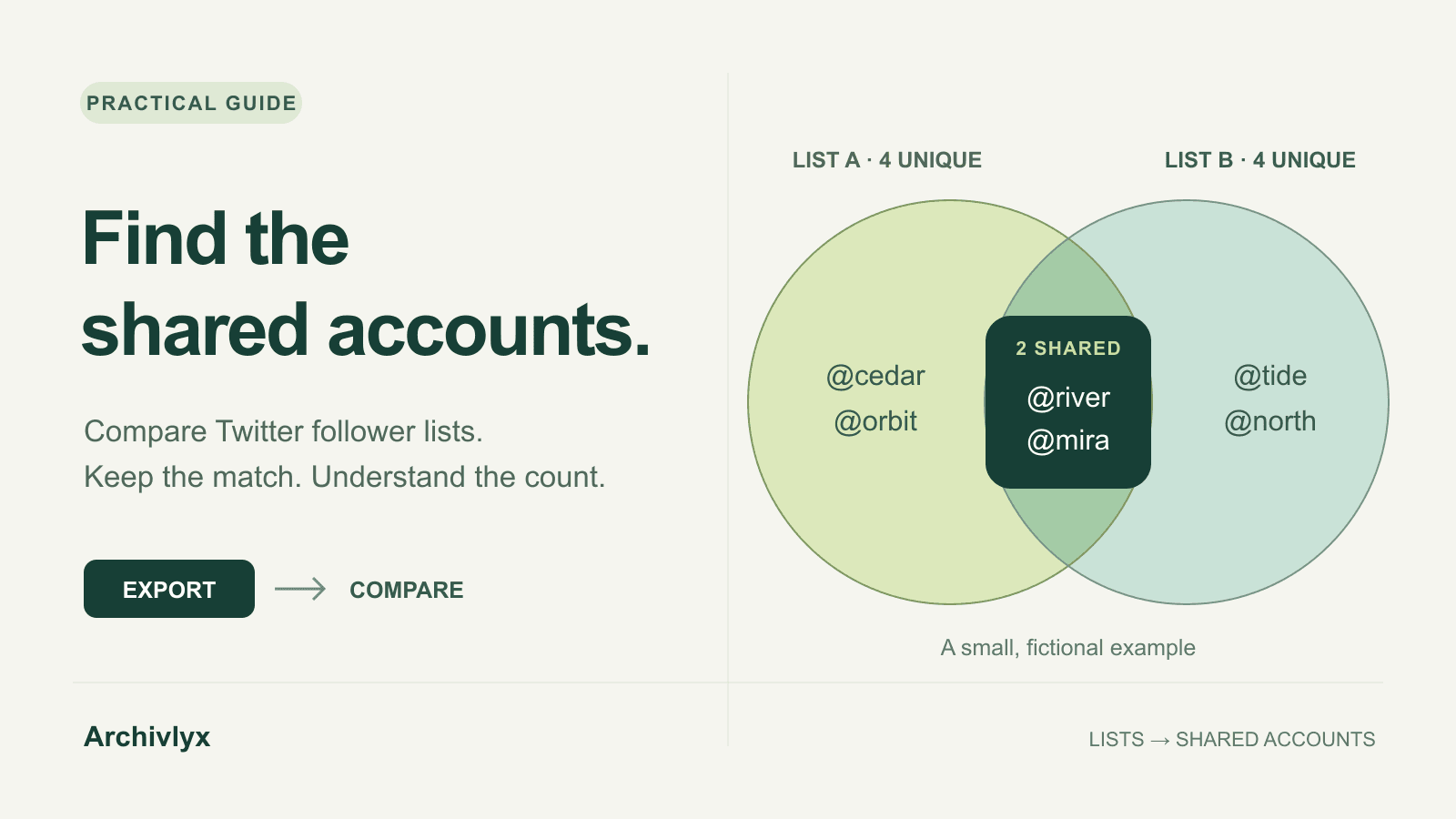
To compare Twitter followers, put the two lists in separate spreadsheet tabs, match their handles, and filter for accounts found in both. Remove duplicates before counting. The useful result is a list of shared accounts you can inspect—not just an overlap percentage.
This also works for two following lists. Choose the relationship first: followers tell you who follows each account; following tells you whom each account follows. Mixing the two answers a different question.
Start with two files and one clear question
Suppose you are comparing two newsletters before choosing a collaboration partner. You want to know which accounts appear in both exported follower lists. You do not need an audience dashboard to answer that first question.
Archivlyx supplies the source lists for this workflow: it exports followers or following with a Handle field, while your spreadsheet calculates the overlap. If you already have two files, skip to normalization. Otherwise, start with Export Twitter Followers or Export Twitter Following and collect the same relationship for both accounts.
Enter the first account's handle or profile URL in the matching exporter. Sign in to Archivlyx if prompted; this workflow does not require the Vault browser extension.
Keep the Follower or Following tab consistent for both accounts. Check the available export size and your current plan or credit allowance before requesting a larger list.
When the list or export task is ready, choose Export, then Export CSV or Export Excel. Repeat for the second account using the same relationship.
Keep the original files. Work on copies named List A and List B, and note the target account, relationship, collection time, and number of rows returned. If either export is partial, the result describes these two files, rather than the full audiences. A low overlap can simply mean that much of one audience is missing.
For the steps below, create tabs named A and B. Copy each file's Handle column into column A, with Handle in A1 and the first account in A2. Do not use display names: two people can share the same name.
Normalize the handles before matching
In B1, type Key. In B2, enter the formula below, then fill it down to the last populated row. Repeat on both tabs.
=LOWER(SUBSTITUTE(TRIM(A2),"@",""))This makes @River, river, and RIVER compare as river. It expects a handle, not an entire profile URL. If your source contains URLs, use its Handle field instead of pasting those URLs into this column.
Copy the Key column and paste it as values in your working copy. Remove blank keys, then use your spreadsheet's Remove Duplicates command on the Key column. Preserve the header. You now have one row per observed handle on each tab.
Why remove duplicates first? Five rows containing the same account are still one shared account. Counting rows would make the overlap look larger without adding a single person.
Mark the accounts found in both lists
On tab A, put Shared? in C1. Enter this formula in C2 and fill down:
=IF(COUNTIF(B!$B$2:$B$100000,B2)>0,"Shared","A only")The range points to the cleaned keys on tab B. Extend its final row if needed. Filter column C to Shared; the visible keys are your shared accounts. Copy those filtered rows to a new tab named Shared if you want a separate review list.
To find accounts unique to B, repeat the check on tab B with the range pointing to A!$B$2:$B$100000. If your spreadsheet uses semicolons as argument separators, replace the commas in these formulas.
Microsoft's COUNTIF documentation explains the range-and-condition matching used here. The formula asks whether a key is present; it does not establish who owns that account.
Check your result against a small example
Here is a deliberately small, fictional example you can use before working on a large file.
List A, raw | List B, raw |
|---|---|
@river | river |
@mira | @MIRA |
@cedar | @tide |
@orbit | @north |
@RIVER |
After cleaning, A has four unique keys and B has four. The Shared tab should contain exactly river and mira. A only contains cedar and orbit; B only contains tide and north.
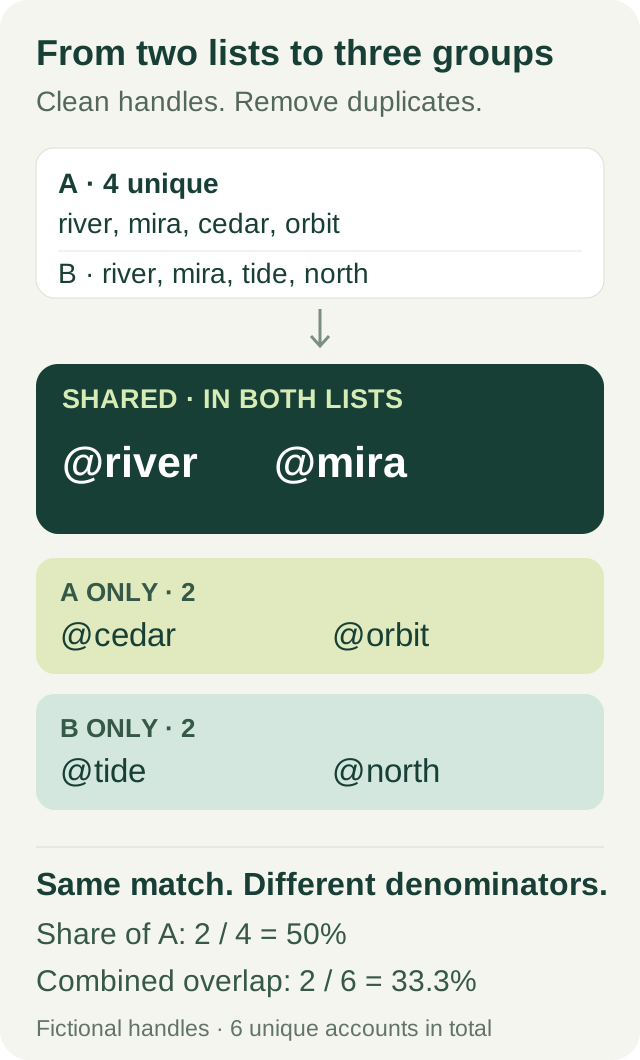
Two useful percentages answer different questions:
Share of A also found in B: 2 ÷ 4 = 50%. Use this when A is your starting audience.
Overlap of the combined set: 2 ÷ 6 = 33.3%. The six accounts are the union of A and B, with shared accounts counted once.
Label the denominator beside the number. “50% overlap” by itself leaves the reader guessing which list you divided by. If one list has 100 accounts and the other has 10,000, that ambiguity becomes a real problem.
Turn the shared list into a useful next step
Use the Profile Url and Bio columns in your original Archivlyx exports to review a small sample of shared handles. Open the profiles and check whether they matter to your decision. A shared account might be a journalist, a customer, an inactive profile, or a large account followed by almost everyone. The match alone does not show purchase intent or endorsement.
For following-list research, our following analysis with a worked @sama example shows how to move from account rows to an interpretation. Use that after you have a reliable comparison, rather than treating the percentage as the conclusion.
Keep the two cleaned lists, Shared, A only, and B only together with your collection notes. That gives you something another person can check. If you repeat the comparison later, remember that handles can change. A match on a handle is a practical same-snapshot comparison, not a permanent account identity record.
Can this tell me who unfollowed?
Not from two different accounts' follower lists. That comparison finds shared and distinct observed accounts. Comparing two dates for the same account is a different task, and incomplete exports or renamed handles can still look like removals. Call those “missing from the later file” until you have enough evidence to explain the change.
Your finished workbook should contain the deduplicated shared list, A only, B only, and a count with its denominator. Keep the original exports beside it so someone else can check the result. For your next comparison, use Archivlyx Twitter Exporter to collect the same relationship for both accounts, then run the same comparison on the returned files.


