

Want to bulk delete all your Twitter bookmarks at once? Here's the frustrating truth: Twitter doesn't offer a built-in option to clear your bookmarks. You'd have to tap through each one individually — and if you've got hundreds saved, that could take hours.
The good news? There's a workaround. Archivlyx lets you delete all your Twitter bookmarks in a single click. No manual tapping. No wasted time. In this guide, I'll show you exactly how to do it — plus some important things to know before you hit that delete button.
Why Twitter Won't Let You Bulk Delete Bookmarks
If you've ever tried to clean up your bookmarks, you've probably noticed there's no "Select All" or "Delete All" option. That's not an accident.
Twitter keeps this feature intentionally limited. Here's why:
• Bookmarks increase engagement. The more content you save, the more likely you are to come back.
• It discourages "spring cleaning." Twitter wants your bookmark list to grow, not shrink.
• Manual deletion takes forever. With no bulk option, most people just give up and leave their bookmarks cluttered.
For users with 50, 100, or even 500+ bookmarks, manually deleting each one could take 30 minutes to several hours. That's where third-party tools like Archivlyx come in.
How to Bulk Delete Twitter Bookmarks with Archivlyx
Archivlyx is a free browser tool that lets you manage your Twitter data — including bulk-deleting bookmarks. Here's how it works:
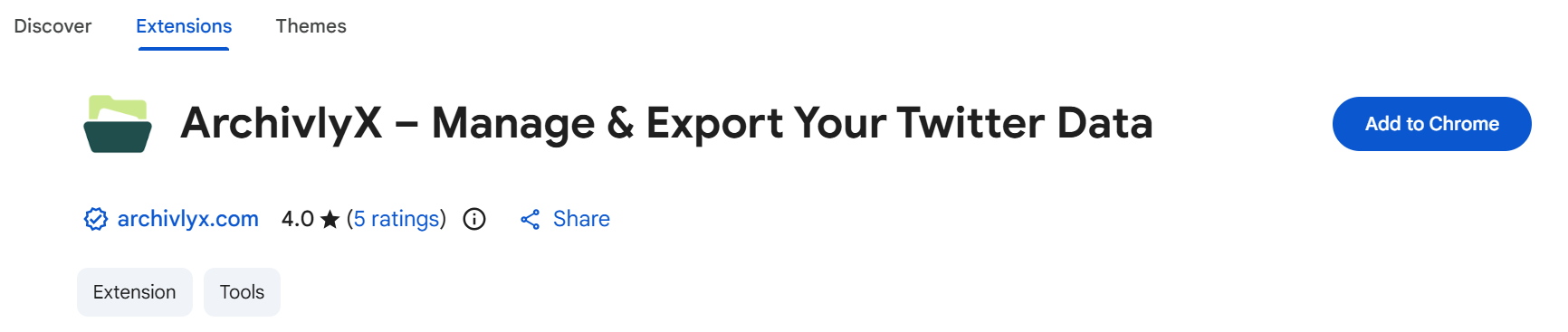
Step 1: Install the Archivlyx Chrome Extension
Head to the Chrome Web Store and search for "Archivlyx" or visit archivlyx.com/extension. Click "Add to Chrome" and confirm the installation.
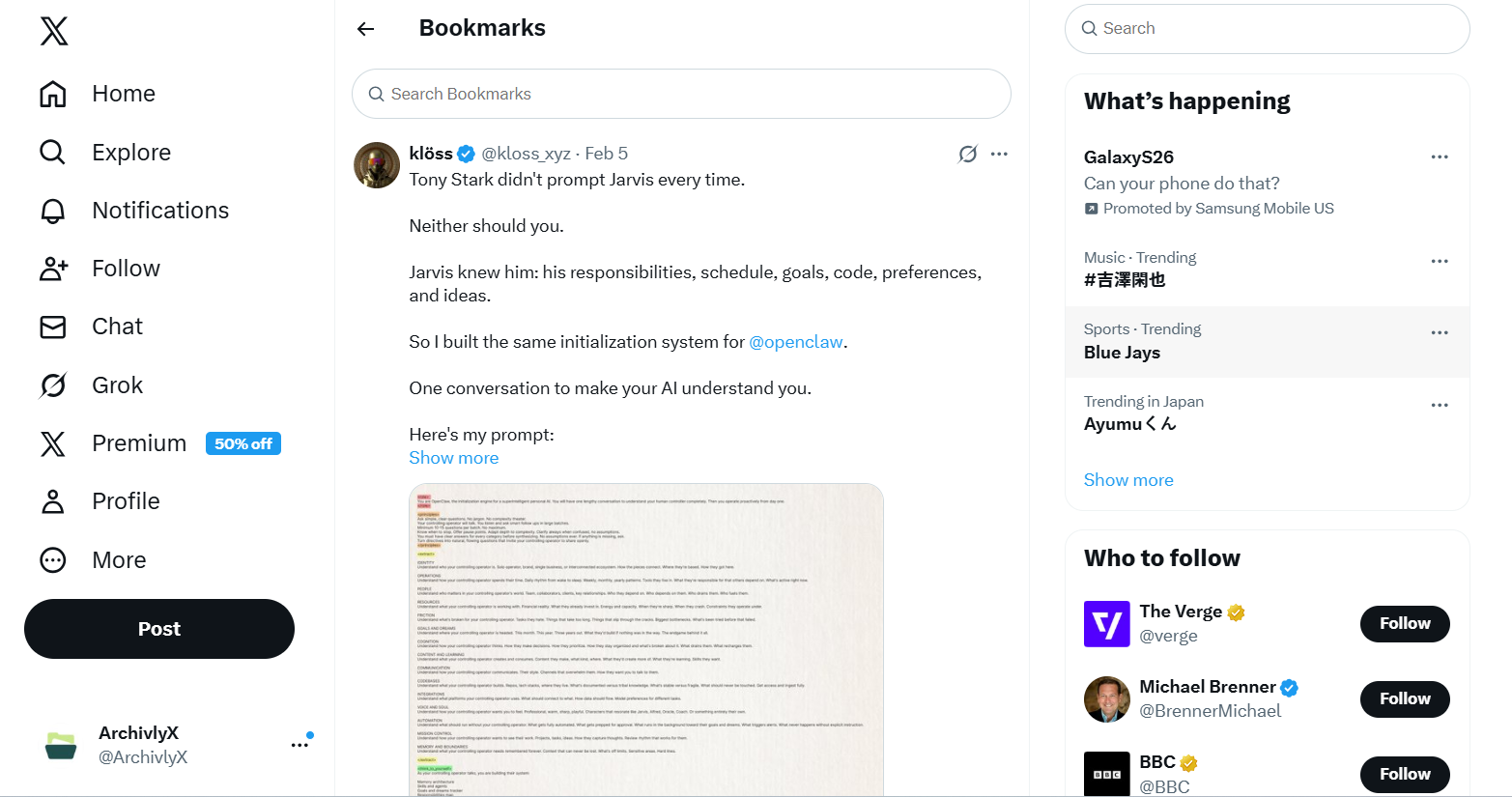
Step 2: Open Your Twitter Bookmarks Page
Go to twitter.com/i/bookmarks (or click "Bookmarks" in your Twitter sidebar). Make sure you're logged into the account you want to clean up.
Step 3: Click the Archivlyx Icon
You'll see the Archivlyx icon in your browser toolbar. (Remember to pin it!) Click it to open the control panel.
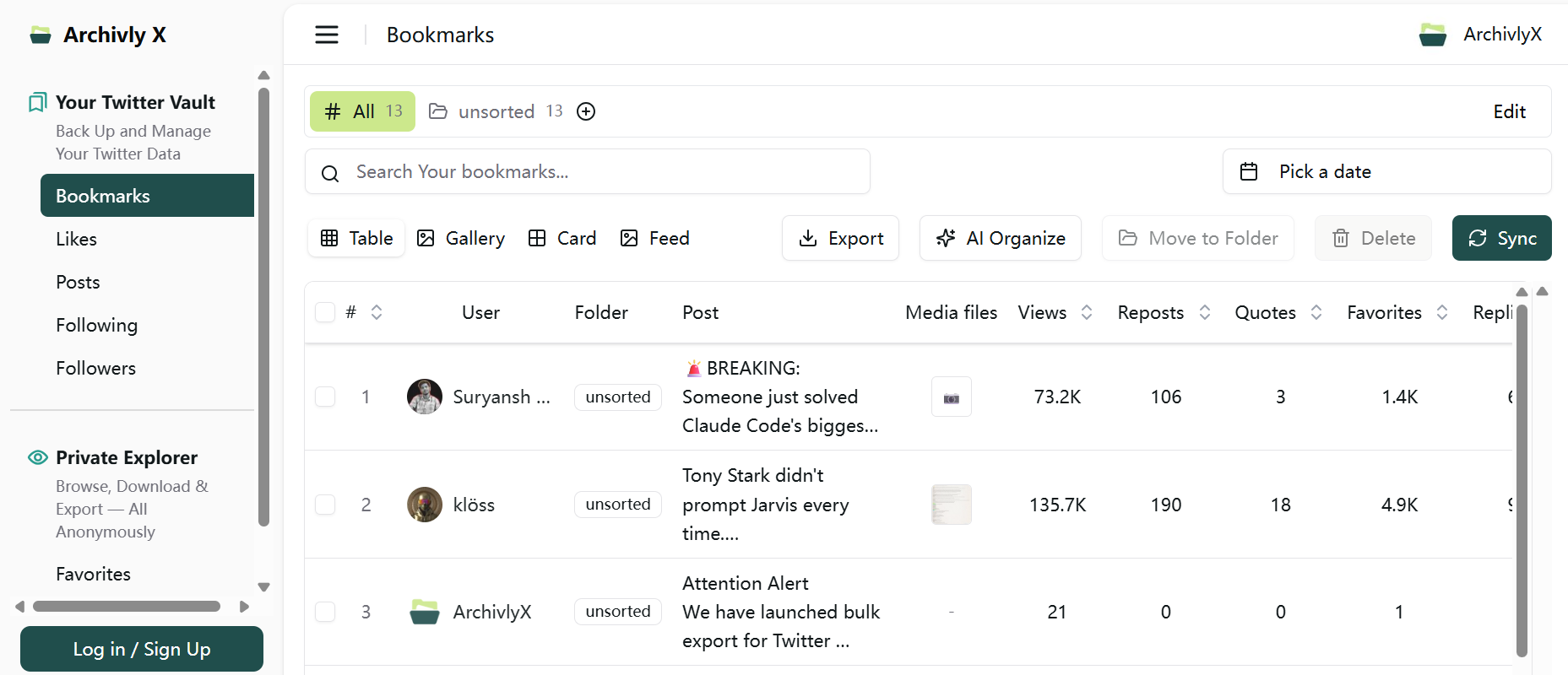
Step 4: Select "Delete"
In the Archivlyx panel, choose the "Bookmarks" tab, then select and click "Delete."
The tool will start removing your bookmarks automatically.
Before You Delete: Export Your Bookmarks First
Here's the thing about deleting bookmarks: it's permanent. Twitter doesn't have a "trash" folder or undo button. Once they're gone, they're gone.
If there's any chance you might want those saved tweets later, we'd strongly recommend exporting them first. Archivlyx can do this too:
1. Open Archivlyx and go to the "Bookmarks" tab
2. Click "Export"
3. Choose your format (CSV or MD)
4. Save the file to your computer
Now you'll have a backup with all your bookmarked tweet URLs, authors, and text content. Even if you delete them from Twitter, you can still access the links.
For a detailed walkthrough, check out our guide: How to Export Twitter Bookmarks.
Is It Safe to Bulk Delete Bookmarks?
Good question. When you're using a third-party tool with your Twitter account, security matters.
Here's what you should know about Archivlyx:
• It runs entirely in your browser. Your data never leaves your computer or gets stored on external servers.
• No password required. Archivlyx works by interacting with Twitter's interface while you're logged in — it doesn't need your credentials.
• Rate-limit aware. The tool processes bookmarks in controlled batches to avoid triggering Twitter's spam detection.
• Open about limitations. We're upfront that deleted bookmarks cannot be recovered.
That said, always be cautious with any browser extension. Only install tools from trusted sources, and check reviews before adding anything to your browser.
What Happens After You Delete Your Bookmarks?
Once your bookmarks are deleted:
• They're removed from your Twitter account immediately
• The original tweets are NOT affected (you're just removing your personal bookmark)
• The tweet authors are NOT notified
• You cannot undo the deletion
Your bookmarks page will be empty, and you can start fresh — or just leave it clean.
Wrapping Up
Cleaning up your Twitter bookmarks shouldn't take any energy.
With Archivlyx, you can bulk delete everything — just make sure you export first if there's anything you want to keep.
Ready to clear out the clutter? Download the Archivlyx extension and get your bookmarks under control.


