To sort Twitter followers by follower count, open a follower export in a spreadsheet, select the whole table, and sort its Followers column from largest to smallest. That column describes each account in the file. Keep the other columns attached so a large number doesn't end up beside the wrong person.
If you already have a CSV, you can start with the import below. If you still need a list, the Archivlyx followers exporter is the place to collect the input. The spreadsheet does the sorting; exporting and ranking are separate steps.
Choose the list that answers your question
“My most-followed followers” means the accounts following you, ordered by their own follower counts. Use your Followers file for that task. If you want to rank the accounts someone follows, use their Following file instead. Sorting changes the order of the rows, not the relationship they represent.
There is one more distinction worth making before you start. An account with the largest audience isn't necessarily your most engaged follower or the best person to contact. Follower count is a useful first pass when audience size matters. Read the account's bio and recent work before deciding whether it belongs on your shortlist.
We used a six-row Archivlyx CSV for the worked example below. Its filename is dated November 5, 2026. The product reported Export Complete, with 6 total followers and 6 exported. The downloaded file contains 16 columns, including Name, Handle, Profile Url, Bio, Followers, and Following. Those are the counts captured for this small account on that date; they are not a live ranking of every Twitter account.
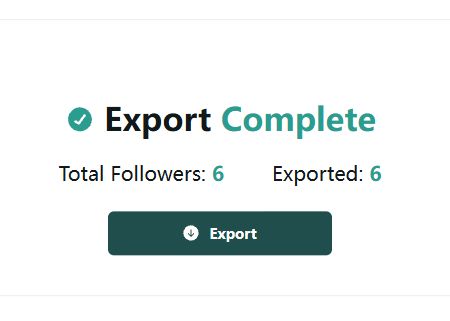
The real six-record result for the CSV downloaded on November 5, 2026. The file supplies the spreadsheet input; sorting happens afterward.
Import the CSV with numbers intact
Keep the original download and work on a copy. A CSV is a text file, so the import settings determine how its columns and values appear in a spreadsheet.
In LibreOffice Calc, open the CSV and check the Text Import settings before accepting it:
Choose UTF-8 for the character set. This matters when names or bios include accents, emoji, or non-Latin text.
Use comma as the separator and the double quote as the text delimiter. A comma inside a quoted bio should stay inside that cell.
Set the Followers field to Standard or US English, rather than Text. Leave Format quoted field as text off when your numeric values are quoted. Keep handles and profile links as Text.
Confirm that the first row contains the field names and that one account occupies one row.
For this sample, the data range is A1:P7: one header row and six account rows. Followers is column H. Your file may have a different layout, so find the header rather than blindly using H in every export.
If the whole line appears in one column, stop and fix the separator. If accented names look broken, check the character set. Sorting a bad import makes the file harder to diagnose without improving the input.
The sample was imported and sorted in the LibreOffice Calc engine, with all six Followers cells read as numbers. The instructions here use Calc's terms. Other spreadsheet applications have equivalent import and sort controls; their buttons were not part of this check.
Sort the entire table, not just the numbers
Select all the columns and rows in the table, including the header. In the six-row example that means A1:P7, not just H2:H7. Then open Data → Sort. Calc's sort criteria and options control the key, direction, and header.
Choose Followers as the sort key and Descending as the direction. Under Sort Options, enable Range contains column labels so the field names stay above the data, and keep the direction Top to Bottom (Sort Rows). Apply the sort to the selected table.
Why select everything? Each row is one account record. Its handle, bio, profile URL, and counts need to move together. Sorting a single column can detach a count from the account it describes. If your spreadsheet asks whether to expand the selection, include the neighboring columns that belong to the table.
Don't include a separate notes table beside the export unless those notes are deliberately part of the same records. When in doubt, select the export's rectangular range explicitly. That is more reliable than clicking a number in a sheet that contains several unrelated sections.
Check the result against a small sample
The sample's Followers values originally appeared in this order:
0, 0, 21, 497, 13, 1
After the descending sort, they appeared as:
497, 21, 13, 1, 0, 0
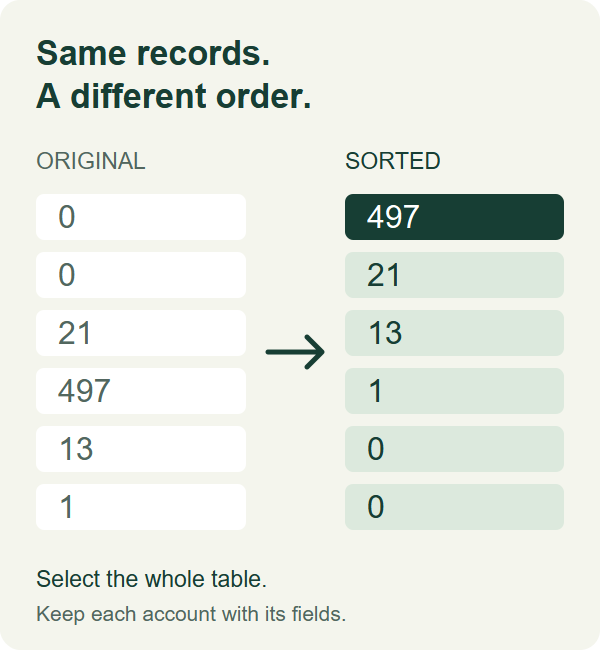
The same six records, ordered by their Followers values. This illustration presents the actual file result; it is not a product interface.
The header remained at the top. All 16 fields in each account row stayed together. The check compared every sorted row with its original handle and fields, rather than merely checking that the numbers looked descending.
You can make the same quick check in your own file. Pick a recognizable handle before sorting. Afterward, find it again and confirm that its name, Followers value, and profile URL still match. Then look at the first few numbers and the bottom of the table. A blank value should remain visibly different from a measured zero.
The two zero-count rows in our sample have equal values on the primary key. Their relative order doesn't identify which account is more relevant. If a consistent tie order matters, add Handle as a second sort key, ascending, and keep that rule in your saved working copy.
If the order still looks wrong
A sequence such as 9, 80, 1,200 can be a clue that numbers are being treated as text or use an unexpected separator. Those are illustrative values, not additional records from our six-row test.
First inspect the actual cell values. Does the cell contain a plain count, or a display label such as 1.2K? Does a leading apostrophe force text? Does the import interpret a thousands separator as part of the number? Fix the numeric interpretation in a working copy before sorting again. Changing the visual number format alone may leave an underlying text value unchanged.
Keep unknown values separate from zero. Zero means the file recorded zero followers; a blank means the value is absent. Replacing every blank with zero can make an incomplete export look more certain than it is.
If only some rows move, check the selected range and any active filter. If counts appear beside different names, undo the sort immediately and repeat it with the complete table selected. Don't try to repair associations by manually moving a few numbers afterward.
Turn the ranking into a useful shortlist
Save the sorted working copy with a label that includes the target account, relationship, collection date, and scope. A partial sample should remain labeled as a sample even after sorting. The highest number in it is the highest among those rows, not proof that you found the most-followed account in the full audience.
If you're starting without a file, use the dedicated followers export page, choose Follower, enter the public target handle or profile URL, and inspect the returned scope before requesting a file. Sign in to Archivlyx if prompted and check the allowance shown for your account. A preview, an incomplete result, and a complete download are different inputs; keep that distinction with the file.
Once you have the right list, repeat the spreadsheet sort and review the top rows for the purpose you actually had in mind. For a possible source list, read bios and recent posts. For partnerships, check relevance before audience size. Add a short reason beside the accounts you keep, such as “covers our topic” or “publishes original reporting.”
You should finish with a smaller set you can explain, not just a column of large numbers. The export supplies the records, the sort orders them, and your review decides which accounts are useful.