You remember the account that posted a space image you liked, but you’ve forgotten which post it was in. Open the account’s Media tab on X, or enter the public handle in Archivlyx to browse the media it finds in a gallery. When you spot the image you want to keep, save that one file and open it from your downloads.
Start with what you already know
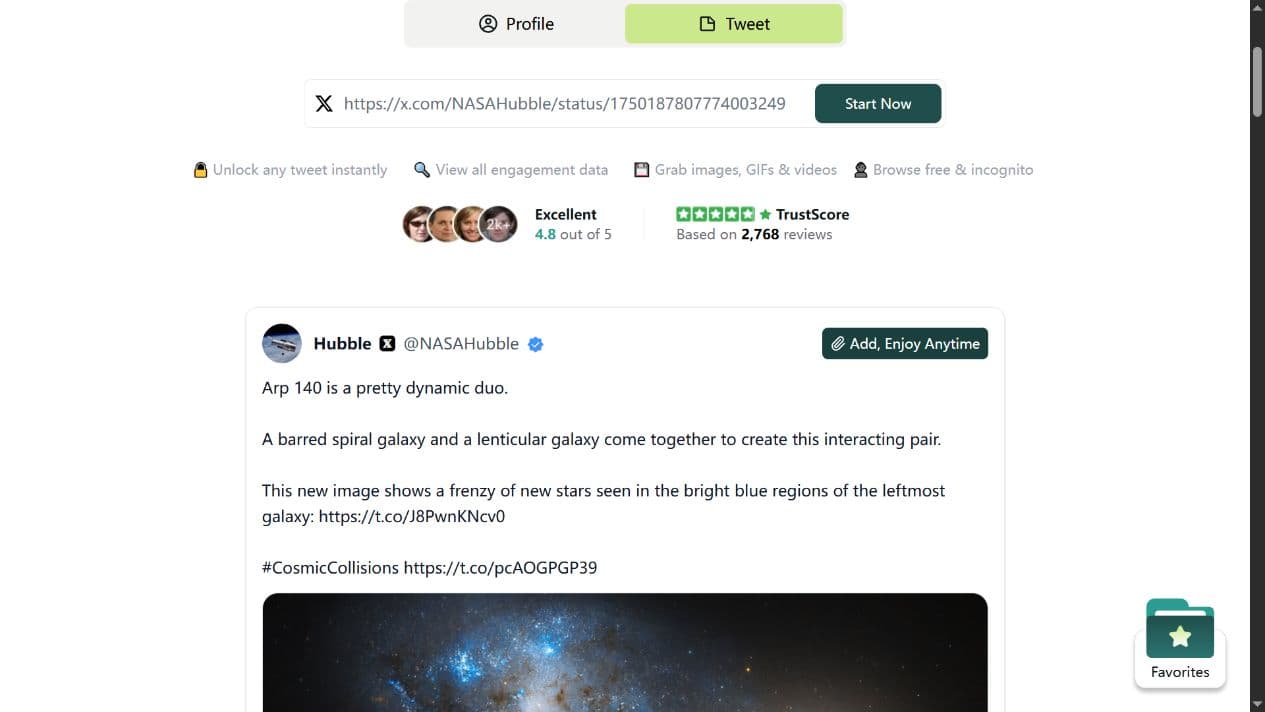
If you have a handle and only remember what the image looked like, start by browsing. An account page gives you a smaller set to look through than general search, and a gallery is useful when the picture is easier to recognize than the words around it. If you remember the caption or the rough date, an account-filtered search can take you closer to a specific post. If you already have that post's link, open it and inspect the attached photos directly.
Say you remember a NASA graphic with text across it and want a copy in your space photos folder. Enter the account you remember seeing at the top of the post. Check the handle after the result opens. If the image originally belonged to an account that NASA reposted, you may need the original author's account or the original post itself.
Browse a public account in Archivlyx Gallery
Open the Archivlyx Twitter Image Downloader. Enter a public handle or profile link and choose Start Now. Try
@NASAfor a public example.Check that the result shows the account you entered, then open Gallery. In our earlier NASA check, the gallery showed image cards alongside a video thumbnail. Identify the image you want and use its individual download control. If Archivlyx opens a sign-up or sign-in dialog, sign in to Archivlyx before downloading. You can still browse the gallery as a visitor.
Look for the file in your browser’s downloads and open it. In our November 24 desktop test, the signed-in browser saved NASA’s blue launch briefing graphic as a 1,200 × 675 JPEG. Check the contents of your own file before saving it to your collection.
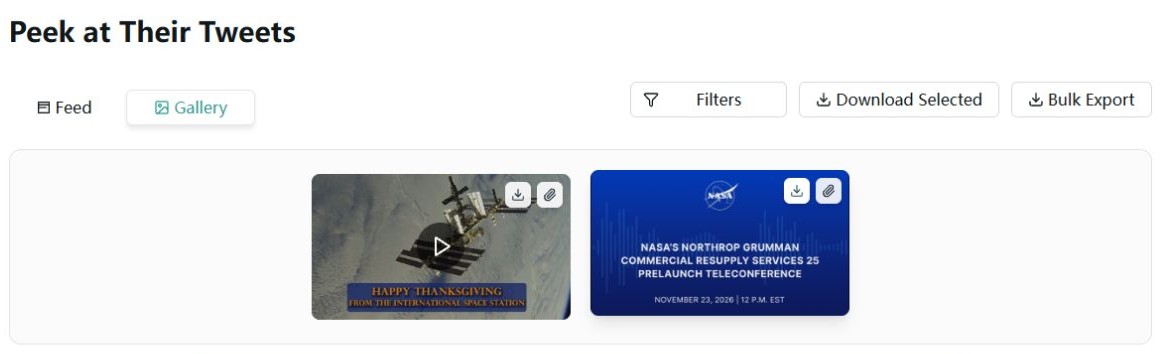
NASA Gallery on November 24. The play mark identifies the video. The blue still image has its own Download control.
If the browser shows a download limit, keep the source link so you can return to it. If there are several similar images, read the original caption to identify the one you want before saving it.
Pick the image you want to keep
In a collection with both photos and videos, a frame from a video can look like another still image. Look at the card and any media controls before downloading. For a graphic, compare details you can recognize from the original, such as the words or placement of a logo. For a photo, check a distinctive part of the scene. Two cards with similar colors may show different crops, or they may be different posts about the same subject.
Browsers can also show the account's profile picture or banner near its media. If the image you remember was attached to a post, look in the gallery and compare the actual artwork. A profile banner can reuse a photo in a wider crop. Save one file first so you can check the crop and size before downloading similar images.
Check the file after the browser saves it
Open the browser’s downloads view and find the most recent item from the action you just took. Open the file in an image viewer. Make sure the picture matches the card, and check that any text or background you wanted is still visible. If you downloaded several images with similar names, rename the one you are keeping after you open it. An account and a short subject, such as NASA-space-graphic.jpg, will make sense when you come back later.

The actual download from the signed-in session measured 1,200 × 675 pixels.
If image dimensions matter to you, use the file's information panel to read them. A sharp thumbnail can look soft when enlarged, and a landscape crop may lose important details when you use it as a portrait phone background. If you need the original caption or credit, save the post link alongside the image as well. On a phone, check your browser’s download list or your device’s Files app if the file doesn’t appear in your photo library.
Look for an older image by date
The gallery shows the media retrieved for that result. If the photo you remember is missing, go back to X and search that handle around the date you think it was posted. If you already have one original post with several photos, keep the source order when you save them.
What you see | The next step |
|---|---|
The profile opens, but the image isn't in the gallery | Try the profile’s Media tab on X or narrow an X search by the account and approximate date. |
The thumbnail is there, but it opens as a video | Look for a separate still-image card, or open the original post to see what it contains. |
The download control shows an account or limit message | Sign in to Archivlyx if prompted. If the browser shows a limit, keep the source so you can return to it. |
The file opens, but a key detail is too small | Check its dimensions and look for a larger copy from the original publisher if you need more detail. |
Once you have the image you meant to keep and can open it, you’re done. Save the source link if the caption matters to you, especially when the picture could be confused with another image from the same account.
Source. X help on profile media timelines.